Today, Zoom isn’t just for work — it’s a valuable source of impactful insights. From virtual webinars and podcast interviews to team discussions and educational tutorials, there are countless ideas worth sharing with a wider audience.
But how do you turn hours of Zoom recordings into digestible content that fits perfectly on TikTok, YouTube Shorts, and Instagram Reels? Scrubbing through lengthy footage to find compelling moments can be incredibly time-consuming.
Turn Zoom Recording into YouTube Shorts
That’s where this guide comes in. In this blog, we’ll show you how to use an AI-powered video editor to quickly and effortlessly repurpose Zoom recordings into engaging short video clips. Let’s dive in!
Directly Turn Zoom Recording into Viral-ready Clips with AI>>
Also interested in: How to Edit a Zoom Recording for Free>>
AI-powered Tool to Turn Zoom Recording into Clips Online
FlexClip’s AI Long-to-Short Generator is designed to transform Zoom recordings into engaging bite-size videos. Powered by advanced AI technology, it automatically analyzes the entire recording to identify the most compelling moments based on hooks, storytelling flow, and topic relevance. Within minutes, you’ll get multiple ready-to-share short clips complete with auto-generated captions, optimized framing, and virality scores that predict engagement potential. This goes beyond random clipping — it’s intelligent content extraction built for short-form platforms.
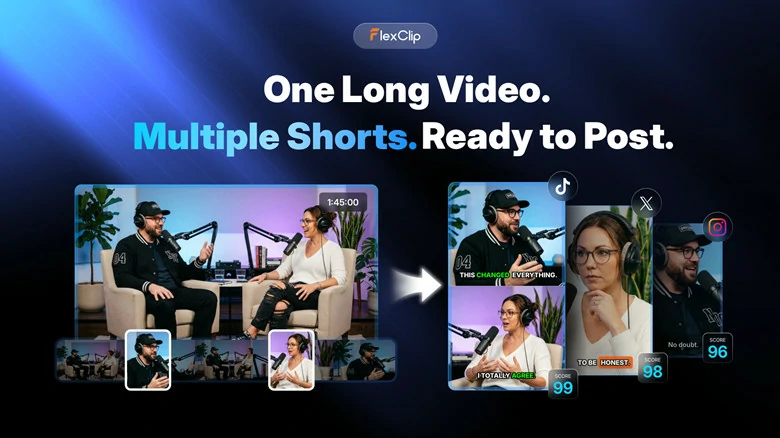
FlexClip's AI Long to Short Generator
Beyond its efficient generation process, FlexClip also handles the finer details with precision. Its AI automatically reframes horizontal Zoom recordings into vertical formats while keeping speakers centered, even as they move around the screen. Stylish animated captions help create a scroll-stopping viewing experience. You can also adjust clip length, add logos for brand customization, and instantly share videos to platforms like YouTube, LinkedIn, and more. Every reframed clip maintains high quality and visual consistency — all without requiring manual edits.
FlexClip's AI Long to Short Converter
How to Convert Zoom Recording into Clips with FlexClip
Step 1: Export and Download Zoom Recording
Before we getting started, it’s important to ensure that you already have the Zoom recording file. If not, download it from Zoom’s cloud storage or locate it in your local recording folder instantly once you finishing recording. Rename it for easy, distinguishable search.
Step 2: Upload Zoom File to FlexClip
Open FlexClip’s AI Long-to-Short Generator and upload the Zoom recording you want to turn into social-ready clips. You can either import the file directly from your computer or load it from Google Drive if your recording is stored there.
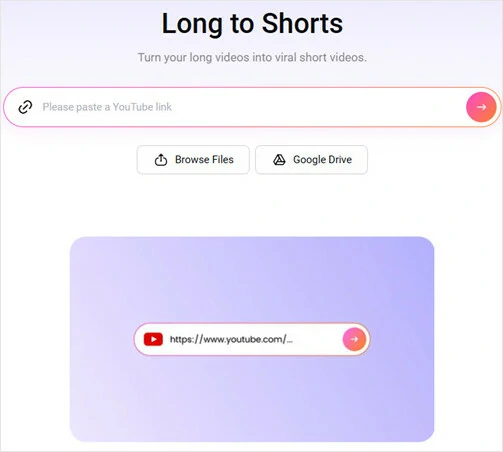
Upload Zoom Recording Video to FlexClip's Long-to-short Converter
Step 3: Make Setup for Your Shorts Video
Once the recording is uploaded, you’ll be taken to the Settings page, where you can customize preferences such as target clip length, animated subtitle style, text language, and the type of clips you want the AI to prioritize. Set the aspect ratio to 9:16 for TikTok, Shorts, and Reels, then adjust any other settings as needed.
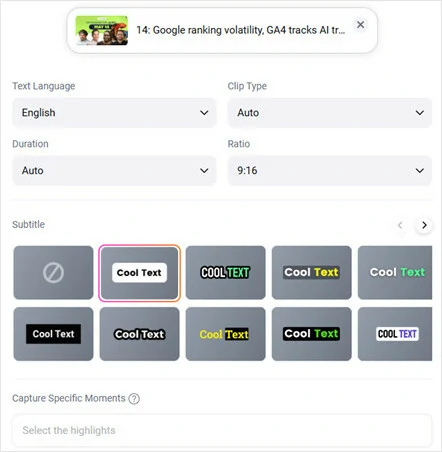
Make Setup for Your Shorts Video
Step 4: Convert Zoom Recording into Clips in One Click
Once everything is set, click the Generate button to start the conversion process. The AI will automatically analyze your Zoom recording and transform it into multiple bite-size clips in your selected aspect ratio. Each clip comes with auto-generated captions, engaging titles, virality scores, and AI-powered face tracking that keeps the speaker centered throughout every reframed scene.
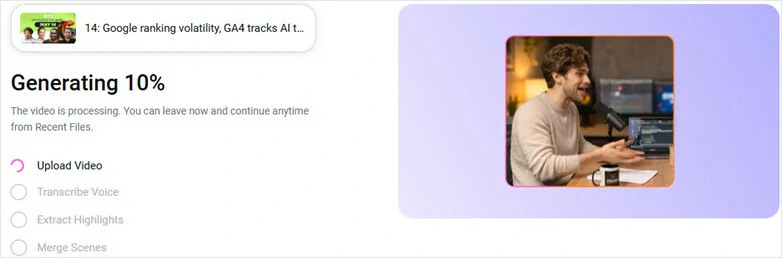
Convert Zoom Recording into Clips in One Click
Step 5: Preview AI-generated Clips and Select Your Preference
Once process completes, preview all the clips in a new aspect ratio. If you want to adjust duration, simply click the Trim button to review the transcript and select the script duration as you like. AI will instantly reframe the video in vertical format while still keeping face tracking and auto-caption features enabled.
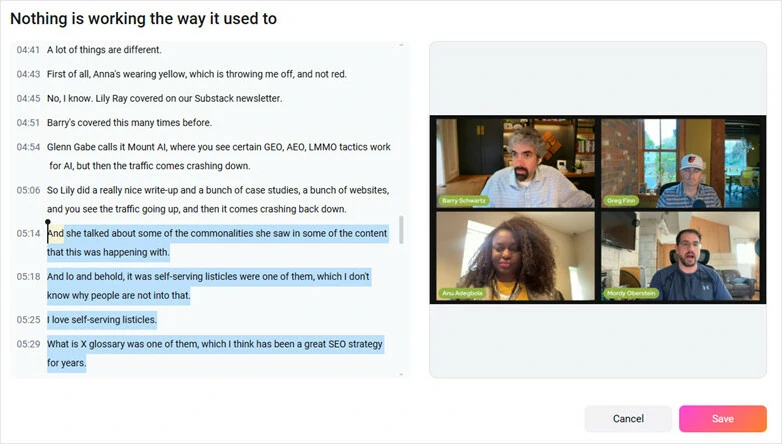
Preview AI-generated Clips and Select Your Preference
Step 6: Customize, Download or Directly Share Viral-ready Clips
Choose your favorite clip and open it in FlexClip’s built-in video editor to add personal touches like your brand logo, trending TikTok background music, or fun stickers. If no further customization is needed, simply click the Download button to save the video to your device. To publish directly to social media, connect your platform accounts first, then let the AI generate captions and share your clips effortlessly.
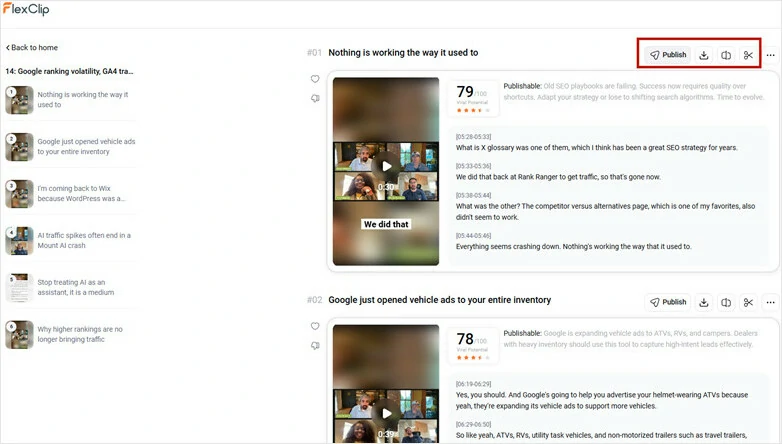
Customize, Download or Directly Share Viral-ready Clips
More Zoom Recording to Clip Converters You Can’t Miss
Descript:Text-based Zoom Recording Editor
Descript makes editing Zoom recordings as easy as editing a document. Using AI, it automatically transcribes your video by analyzing the audio, allowing you to remove filler words, rearrange sections, and trim clips simply by editing text. For creators who prefer text-based editing over traditional timeline workflows, the process feels intuitive and efficient.
Its built-in collaboration features also make teamwork seamless. Team members can review transcripts, leave comments, and approve edits in one shared workspace without constantly sending video files back and forth. Although Descript doesn’t automatically generate short clips from Zoom recordings, you can still easily create highlight-worthy clips through quick text-based edits.
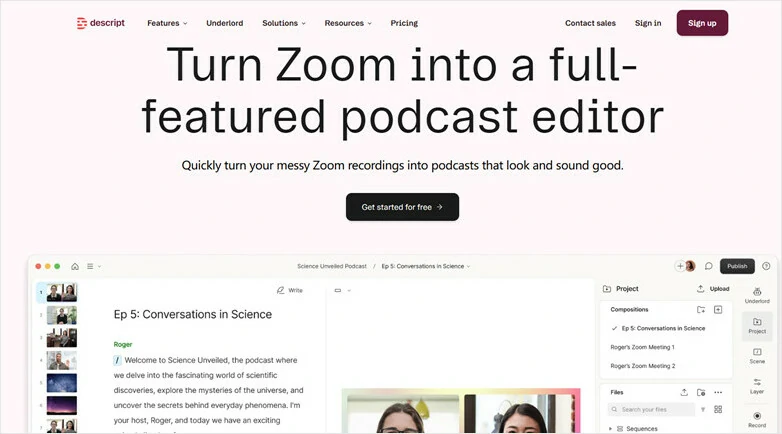
Descript:Text-based Zoom Recording Editor
Flixier: Cloud-based Video Editor to Edit Zoom Recording
Fixier allows you to turn Zoom recordings into engaging short clips directly in your browser without installing any software. You can connect your Zoom account to import cloud recordings or upload videos from your local device, then use the timeline editor to trim footage, crop videos into vertical format, and add subtitles for a more immersive viewing experience. Once your editing is complete, you can instantly publish your content to YouTube, Vimeo, Facebook, or various cloud storage platforms with just one click.
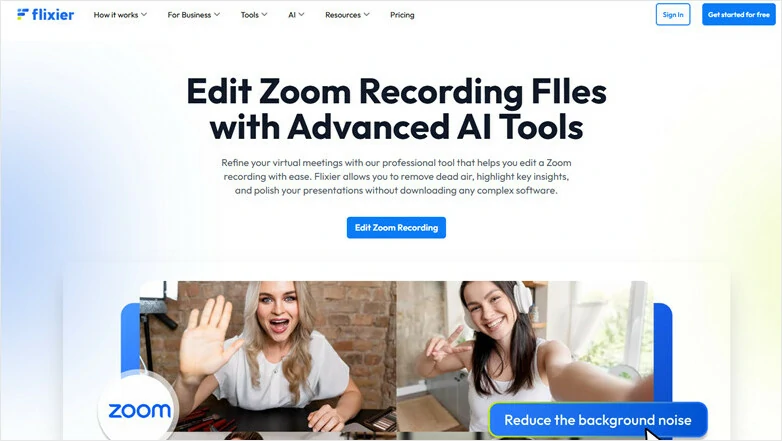
Flixier: Cloud-based Video Editor to Edit Zoom Recording
OpusClip: AI Tool Convert Zoom Recording into Shorts Clips
OpusClip is another AI-powered solution for turning Zoom recordings into bite-sized clips. It helps repurpose long-form Zoom content into engaging Shorts at scale with AI clipping, auto captions, and smart automation, making it easy to identify the most promising highlights. At the same time, OpusClip doesn’t leave everything to AI. You can still fine-tune clip length, edit captions, rearrange segments, and apply your brand kit to maintain visual consistency with minimal effort.
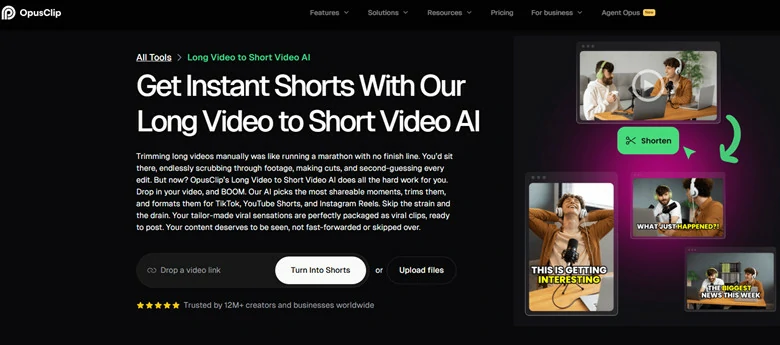
OpusClip: AI Tool Convert Zoom Recording into Shorts Clips
The Bottom Line
Your Zoom content is packed with valuable insights that deserve a wider audience. By turning Zoom recordings into bite-sized Shorts clips, you can make your content more engaging and accessible for mobile viewers across vertical social media platforms. Which approach suits you best? Choose your preferred method and start transforming your Zoom recordings into Shorts-ready content today!




FlexClip AI Video Maker
Reach professional-quality videos faster with easy editing tools, templates, and smart AI.
Start Now for Free
Hot & Trending
-

Best Ways to Find Music in YouTube Videos
-

Instagram Story Video Quality Bad After Upload? Fix It!
-

How to Repost Video on TikTok & How to Remove TikTok Repost
-

Improve Video Quality Online: 3 AI Video Quality Enhancers You Can't Miss
-

4K Convert to HD 1080p without Watermark: Best 4k Video Converters
-

Best 8 Free Video Editors - No Download Required
-

Top 13 Birthday Video Makers with Music and Effects Free
-

How to Search Filters on TikTok & Use a Filter You See - TikTok Filter Guide